
Automatic MEP fabrication tagging for Revit: fabrication ductwork tagged part by part
RayCAD tags Revit MEP fabrication parts automatically: fabrication ducts, fittings, and accessories, mapped by service and CID type, and placed with the same care as native elements.



On this page
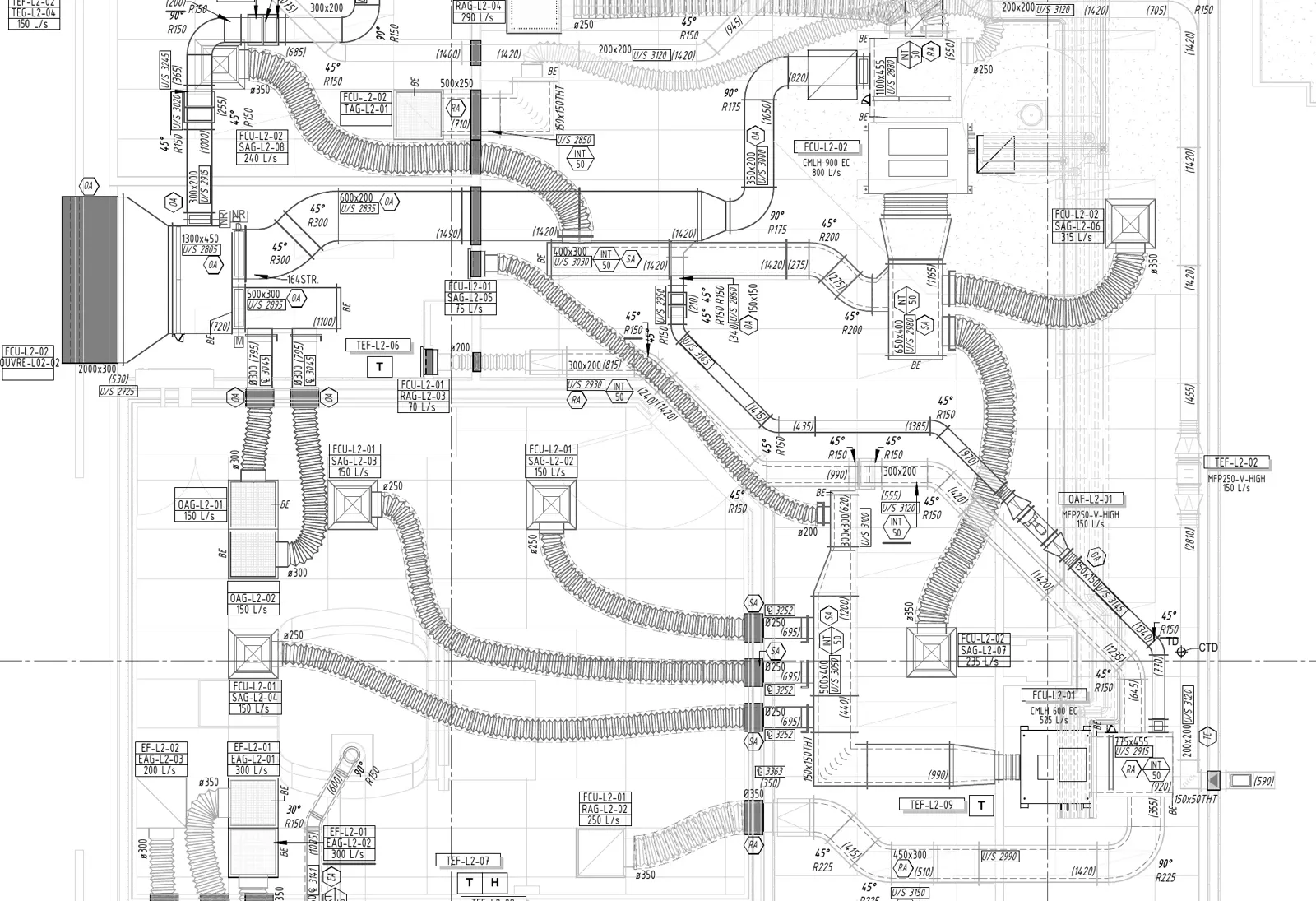
RayCAD is a Revit plugin that tags fabrication ductwork for you, part by part, with the tag families your shop already uses. Fabrication drawings are the shop drawings people cut metal from, so every fitting and every length of duct needs the right annotation on the sheet.
What gets tagged
Fabrication parts fall into three groups, and RayCAD treats each as its own group in the element setup.
- Fabrication ducts. Rectangular, round, and oval straights, tagged with size, elevation, length, number, system abbreviation, and insulation and lining thickness.
- Fabrication duct fittings. Elbows, tees, wyes, crosses, transitions, caps, taps, and unions, with the same contents as their native counterparts.
- Fabrication duct accessories. Dampers, silencers, access doors, and flex connectors, with the same contents as native accessories.
The contents for each part match the native versions, so a drafter who knows the setup for native ducts already knows the setup for fabrication ducts. See the duct tagging page and the HVAC tagging page.
Mapping fabrication parts
A fabrication part is named by its service and its CID type, not by a Revit family. In the element setup, you map each service and CID type to an element kind and pick the tag family for it. Revit does not say whether a fabrication part is a fitting or an accessory, so for parts that could be either you choose the group.
Once mapped, a part keeps its setup across projects through presets. See firm standards.
Placement
Fabrication parts get the same placement behavior as native parts. Tags sit inside a duct when they fit, and outside when they do not. Fittings get the positions suited to their shape, and dampers get a tag beside the run. In section views, fabrication ducts and elbows are tagged along with the other elements in the view. See intelligent placement.
Before and after a coordination round
Fabrication models change often. Retag replaces the tags on the parts you select, so a revised route does not mean tagging the view again by hand. Review Tags lists anything RayCAD could not place.
To tag fabrication parts by hand in Revit, see how to tag MEP fabrication parts.
Try RayCAD and run it on a fabrication model.
Frequently asked questions
Can RayCAD tag fabrication parts in Revit?
Yes. RayCAD tags fabrication ductwork, which means straight ducts, fittings, and accessories such as dampers, silencers, access doors, and flex connectors.
How do I tell RayCAD which fabrication parts to tag?
You map fabrication parts by service name and CID type in the element setup, and pick the tag family for each. The setup lists the identities found in your project.
Do fabrication parts get the same tag placement as native ones?
Yes. Fabrication parts use the same placement behavior, tag content, and review process as native elements.
Does it work in section views?
Yes, for fabrication ducts and elbows, along with the native elements in the same view.