
Information-based tagging in Revit: tags where the information changes
RayCAD tags MEPF drawings where the information changes and where readability needs it. Unlike Revit's Tag All, it does not put every tag on every element.



On this page
Information-based tagging means RayCAD does not naively put every configured tag on every element. It checks two things: whether the reader needs the information, and whether the tag is readable. When two ducts of the same size sit side by side, you do not need a size tag on both.
Tag All and similar tools do the opposite. They tag every element, so a congested drawing fills with tags that repeat what the reader already knows. RayCAD decides where each tag earns its place.
Tags where the information changes
RayCAD places a tag at the start of a run and wherever the information changes, such as a change in size, elevation, or direction. In the settings you choose, for each kind of information, whether the tag goes after the change, before it, or both.
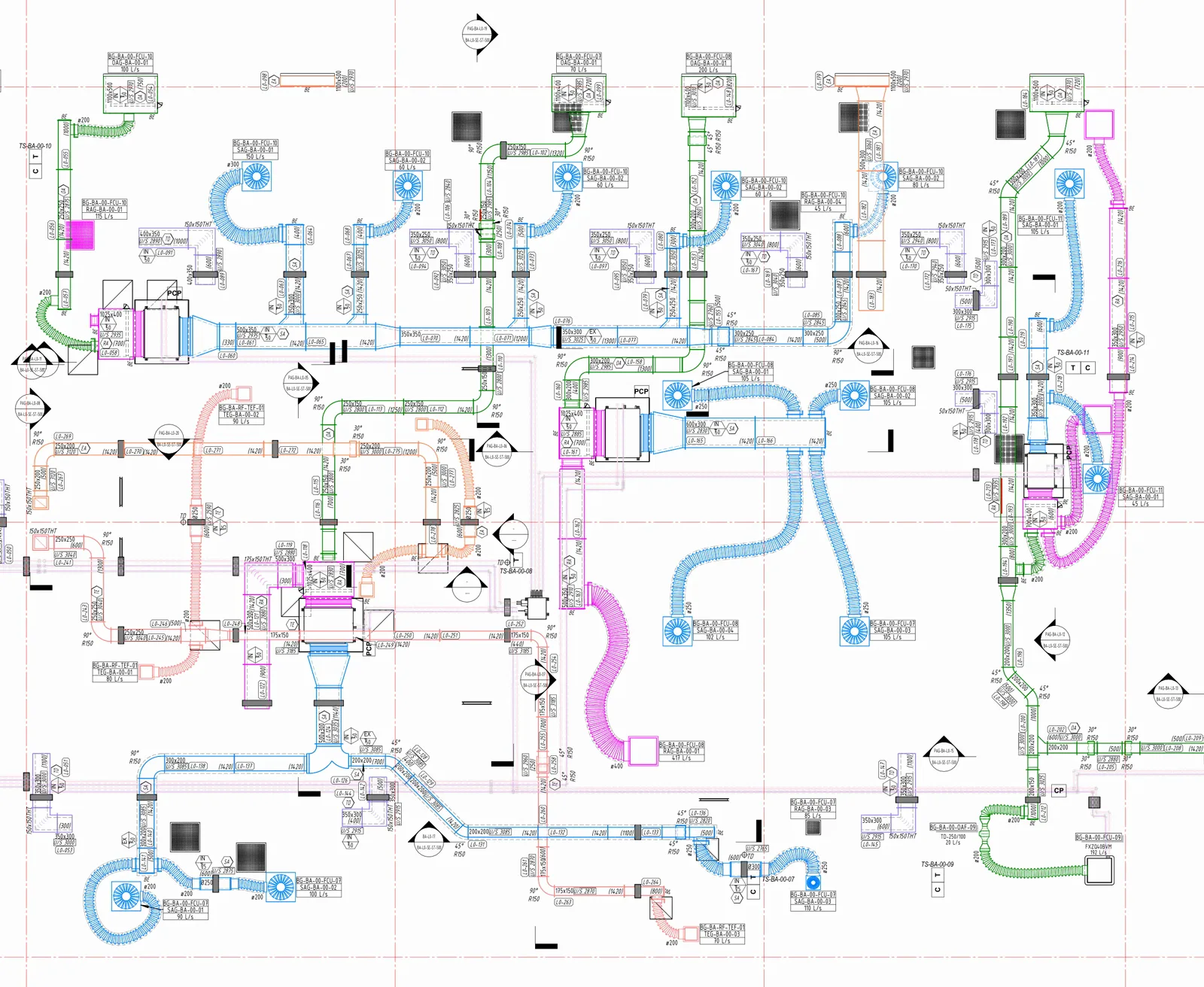
The full sheets are in Results.
Repeat tags for readability
After the required tags are placed, RayCAD checks readability. Every duct in a long run might share the same size, so the information never changes. A reader would have to trace back along the run and guess what the size is. To prevent that, RayCAD repeats the tag at intervals. A default interval applies, and you can set the frequency in the preset, so a tag appears even where the information does not change.
The setting is granular. Size, elevation, insulation, system abbreviation, etc. each have their own change rule and their own repeat frequency.
Tags that carry more than one piece of information
Many firms use a single tag family that prints several pieces of information, such as size and elevation together. RayCAD supports this as an advanced feature. You combine the information in one tag, and RayCAD works out when to emit it and where to place it. It tracks each piece of information separately, so a change in either one places the tag. It sets the repeat frequency once for the whole tag, so combined tags do not pile up on neighboring ducts.
You do not have to turn one piece of information off and accept missing information in return. See using your own tag families.
This is how a drafter thinks
A drafter starts with a duct run and places tags where things change. People make mistakes doing this. They forget a tag where the size changed. They tag half a sheet, go to lunch, come back, and lose the context. The sheet gets approved, and two weeks later someone reports that a tag and its information are missing. That costs time and delays the project, and it takes capacity away from new work.
The data comes from your model
RayCAD does not produce the information inside a tag. It comes from the Revit model, so RayCAD has no room to put wrong information on a tag. When you model an element, you set its size and its other properties, and the tag shows what you set. Your shared parameters, your element properties, and everything else you have set on the element come through. If you model a duct as 500 x 300, the tag will never show anything else.
Because RayCAD uses your tag families, your custom parameters and shared parameters work as they always have. There is no restriction on them.
This matters because wrong data on a drawing has large downstream consequences. It becomes an RFI, a delay, or an error on site. RayCAD takes that risk out of tagging. See how RayCAD reduces RFIs from drawings.
No missed tags, no RFIs from them
Once you have configured a tag, RayCAD does not skip it silently. The tag is either placed, or it appears in the review panel with a red marker in the view. This means that no tag is ever missed. A missed tag cannot slip through to become an RFI. See how RayCAD reduces RFIs from drawings and how it frees drafting capacity.
End-to-end tagging
RayCAD does the whole tagging job and leaves the drafter to review it, as described in intelligent placement. Many plugins only save clicks and leave the human to own the workflow. RayCAD is built around the pains drafters deal with on every sheet.
Frequently asked questions
What is a good alternative to Tag All in Revit?
RayCAD is an alternative to Tag All for MEPF drawings. It tags where the information changes, such as size, elevation, or direction, and repeats tags at set intervals so long runs stay readable. It does not tag every element.
When does RayCAD place a tag?
RayCAD places a tag at the start of a run and wherever the information changes. It then adds repeat tags for readability, so the reader does not have to trace back along a long run.
Can I choose whether the tag goes before or after a change?
Yes. For each kind of information you can set RayCAD to tag after the change, before it, or both.
Can I change how often RayCAD repeats a tag?
Yes. RayCAD has a default interval, and you can set the frequency for each kind of information in the preset.
Can one tag show both size and elevation?
Yes. You can combine several pieces of information in one tag. RayCAD tracks each one, decides when the tag is needed, and places it, so you do not have to drop one piece of information to make the tag work.
Can RayCAD put wrong information on a tag?
No. RayCAD does not write the information inside a tag. It comes from your Revit model, including your element properties and shared parameters, so the tag shows what you set on the element.
Can I use custom or shared parameters in my tags?
Yes. RayCAD uses your own tag families, so your custom parameters and shared parameters work with no restriction.
Will RayCAD miss a tag I configured?
RayCAD places every tag you have configured, or flags it in the review panel. A tag is never silently missed.