
Faster MEPF shop drawing turnaround with RayCAD
Cut manual Revit tagging time, re-tag changed elements after coordination, and review exceptions faster with RayCAD's automated MEPF tagging.



On this page
- The time adds up across a whole building
- Automate the first tagging pass
- Coordination changes should not mean starting again
- Spend less time hunting for what needs review
- What changes in the drawing workflow
- Around 70% less tagging time at Orbit Engineering Services
- Faster tagging gives the whole team more time
- See what faster tagging looks like on your projects
- Questions
RayCAD is a Revit plugin that automates MEPF tagging and annotation. It takes over one of the most repetitive parts of preparing shop drawings: placing tags, updating them after changes, and finding the items that still need attention.
When tagging takes less time, your team gets drawings ready for review and issue sooner. It also spends more of its time on modeling, coordination, and engineering work.
The time adds up across a whole building
Take a 20-floor building with four MEPF sheets per floor. That is 80 sheets to annotate and review.
Tagging every view by hand means selecting elements, placing tags, adjusting positions, checking readability, and repeating the same work floor after floor. The first tagging pass is not the end of it either. When the model changes during coordination, some of those tags have to be updated too.
On a large project, this repetitive annotation work becomes a bottleneck between a coordinated model and a drawing that is ready to issue.
Automate the first tagging pass
Instead of placing tags one by one, a drafter runs RayCAD on an untagged Revit view.
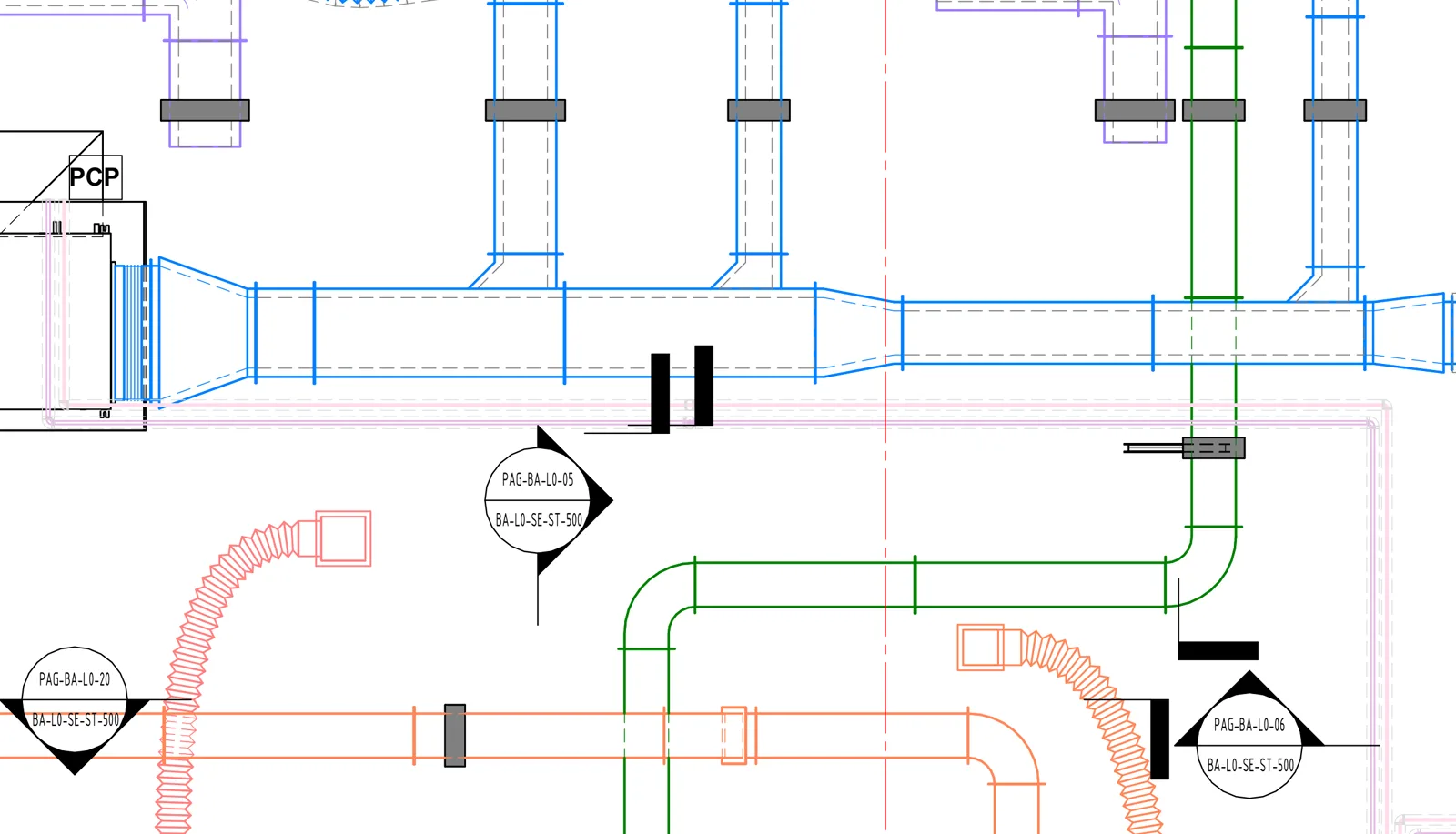
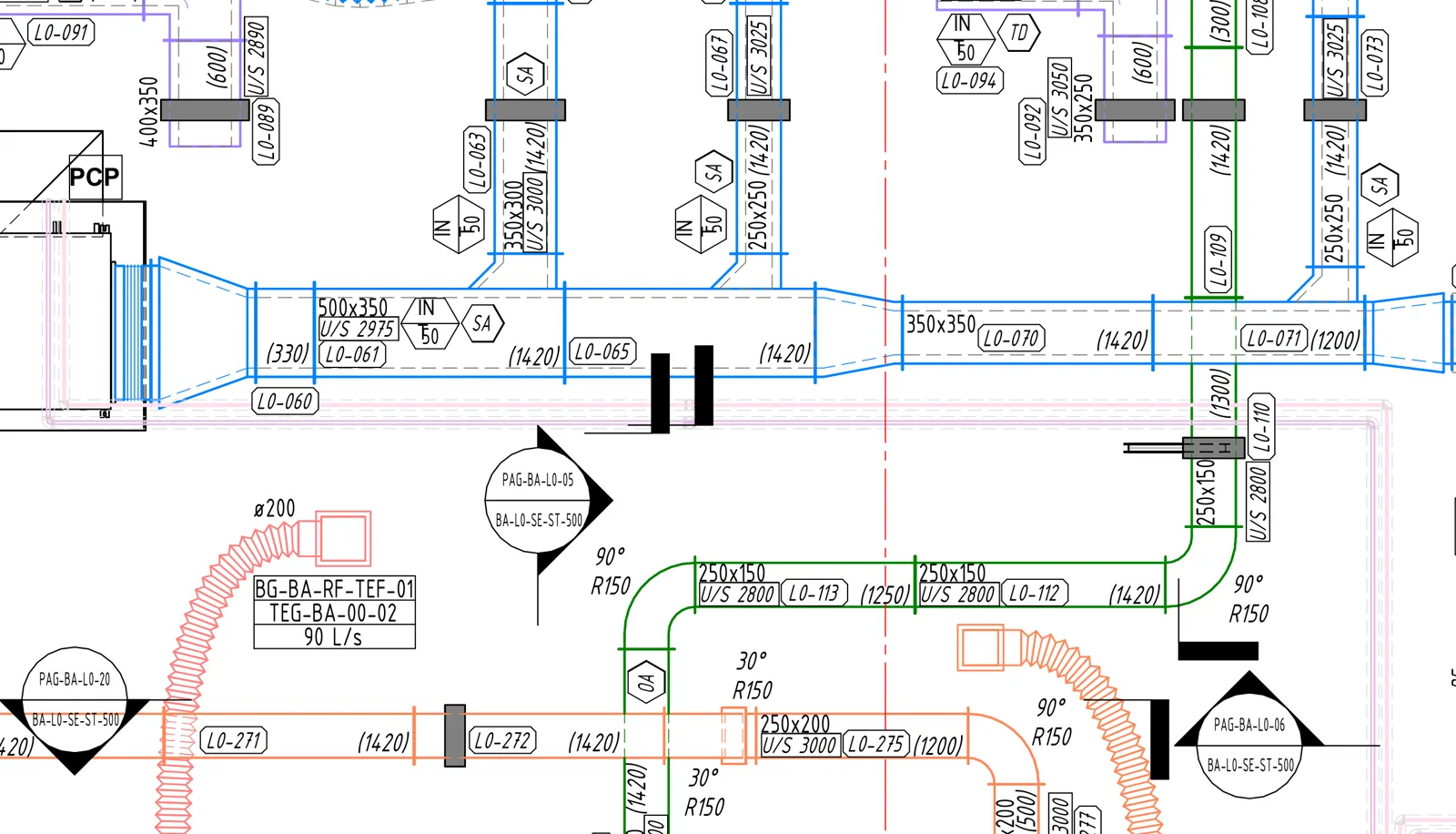
RayCAD places the tags using your firm's configured tagging standards. It places them clearly, avoids overlaps and ambiguous associations, and tags where the information needs to be shown instead of cluttering the drawing.
The drafter still reviews the output, but most of their time goes into checking the result instead of creating and positioning tags.
Read more about intelligent tag placement and firm-specific tagging standards.
Coordination changes should not mean starting again
Shop drawings rarely stay the same from first draft to final issue. A coordination meeting can change duct routes, pipe sizes, elevations, or equipment locations. Each change usually means more manual tag adjustments and another round of checking.
With RayCAD, the drafter selects the affected elements and runs Retag. Retag erases the old tags on those elements, including the ones the change left scattered or wrong, and places new tags that match the current model and configuration.
The team works on the changed area and does not re-tag the entire drawing.
Spend less time hunting for what needs review
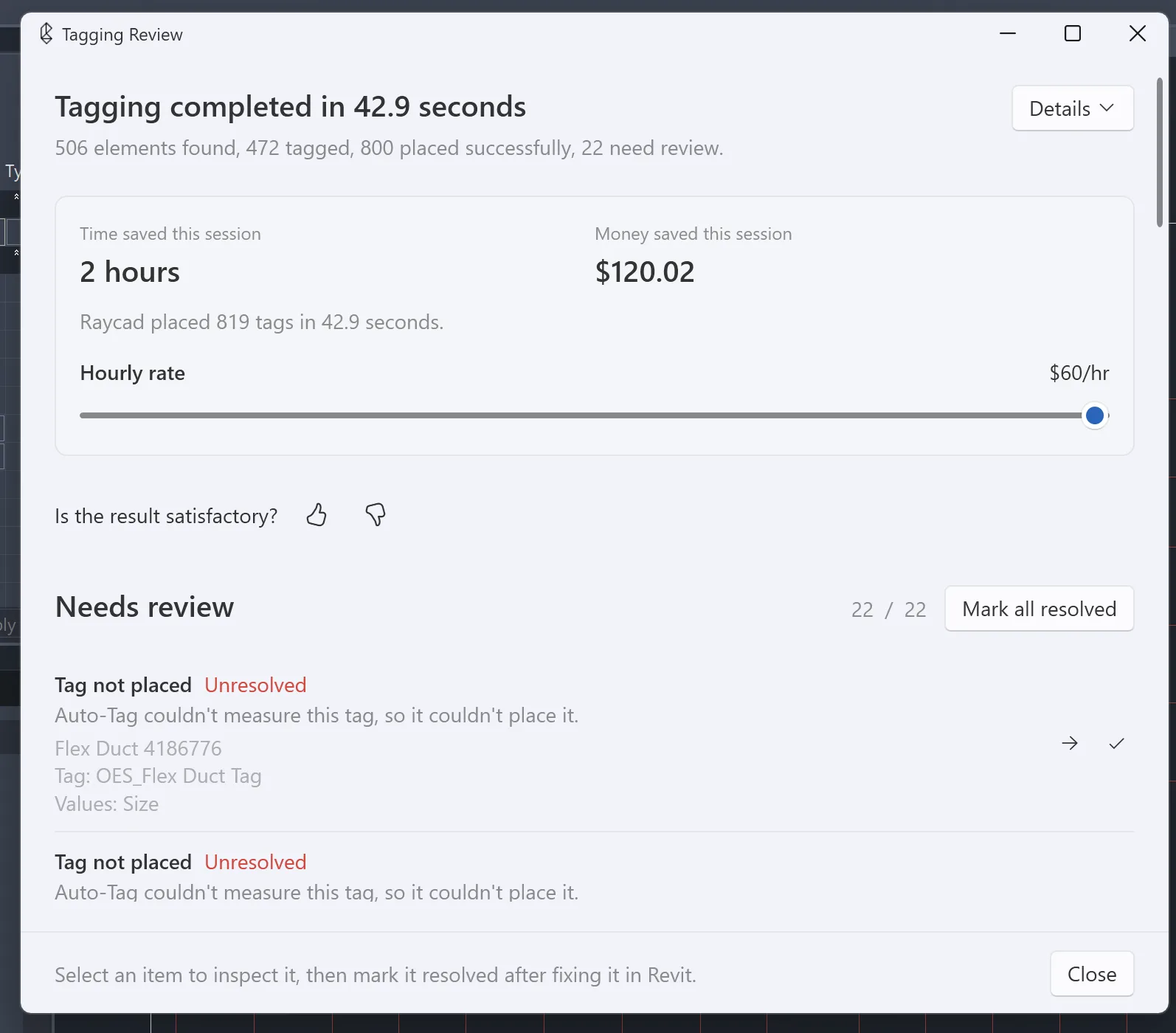
Even with automation, a tag sometimes cannot be placed as expected. What matters is knowing exactly where to look.
RayCAD's review panel highlights the elements where tagging could not be completed correctly. From the panel, the drafter goes directly to the element in Revit, reviews the issue, and makes the adjustment.
The drafter does not search a busy drawing for exceptions. The panel is the starting point for the final check.
What changes in the drawing workflow
| Stage | Manual tagging | With RayCAD |
|---|---|---|
| First tagging pass | Place and position tags element by element | Generate tags using the firm's configured standards |
| After coordination changes | Find, move, delete, and recreate the affected tags by hand | Select the changed elements and re-tag them |
| Final review | Search the drawing for missed or problematic tags | Use the review panel to find and navigate to flagged elements |
| Team's time | More hours on repetitive annotation | More time for modeling, clash resolution, coordination, and QA |
Around 70% less tagging time at Orbit Engineering Services
Orbit Engineering Services, an early RayCAD customer, reports saving around 70% of its tagging time compared with its previous manual workflow.
The team puts that time toward the other work that moves drawings forward: modeling, coordination, and reviewing the final output. Faster tagging also lets the team respond more quickly when preliminary drawings need updating after coordination.
The 70% figure is tagging time. It is not a 70% reduction in the total time to complete or deliver a shop drawing. Overall turnaround also depends on modeling, coordination, approvals, and other project work.
Faster tagging gives the whole team more time
A shorter tagging cycle helps beyond the annotation itself.
- Faster drawing revisions. Less time goes into reworking tags after coordination changes.
- More time for higher-value work. Drafters and engineers spend it on modeling, clash resolution, and checking the drawings.
- Less repetitive work across large projects. The benefit grows with every extra floor, view, and revision.
- Faster progress toward issue-ready sheets. Tagging becomes a smaller part of the shop drawing workflow.
RayCAD does not replace modeling, coordination, or the engineer's final review. It cuts the repetitive annotation work between those steps.
See what faster tagging looks like on your projects
Try RayCAD with your own Revit models, tag families, and drafting standards. For hours by view type, see how long MEPF tagging takes and the MEPF tagging time report.
Frequently asked questions
Can RayCAD tag drawings that do not have any tags yet?
Yes. RayCAD can run on an untagged Revit view and place tags using your firm's configured standards. The drafter reviews the result before issuing the drawing.
Do I have to re-tag the whole drawing after a model change?
No. Select the elements the change affected and run tagging on them. RayCAD replaces their existing tags, so you do not start over on the full drawing.
What if RayCAD cannot place a tag correctly?
RayCAD flags the item in its review panel. You go from the panel straight to the element in Revit and review it there.
Does a 70% reduction in tagging time mean 70% faster shop drawing delivery?
No. Tagging is one part of producing shop drawings. Cutting that work can shorten turnaround, but the overall gain depends on the project's other tasks and review cycles.