
Automatic mechanical equipment tagging for Revit: AHUs, VAVs, FCUs, and more
RayCAD tags mechanical equipment in Revit automatically: AHUs, VAVs, FCUs, fans, pumps, chillers, and 20 more equipment types, with identifier and model tags that sit clear of the unit.



On this page
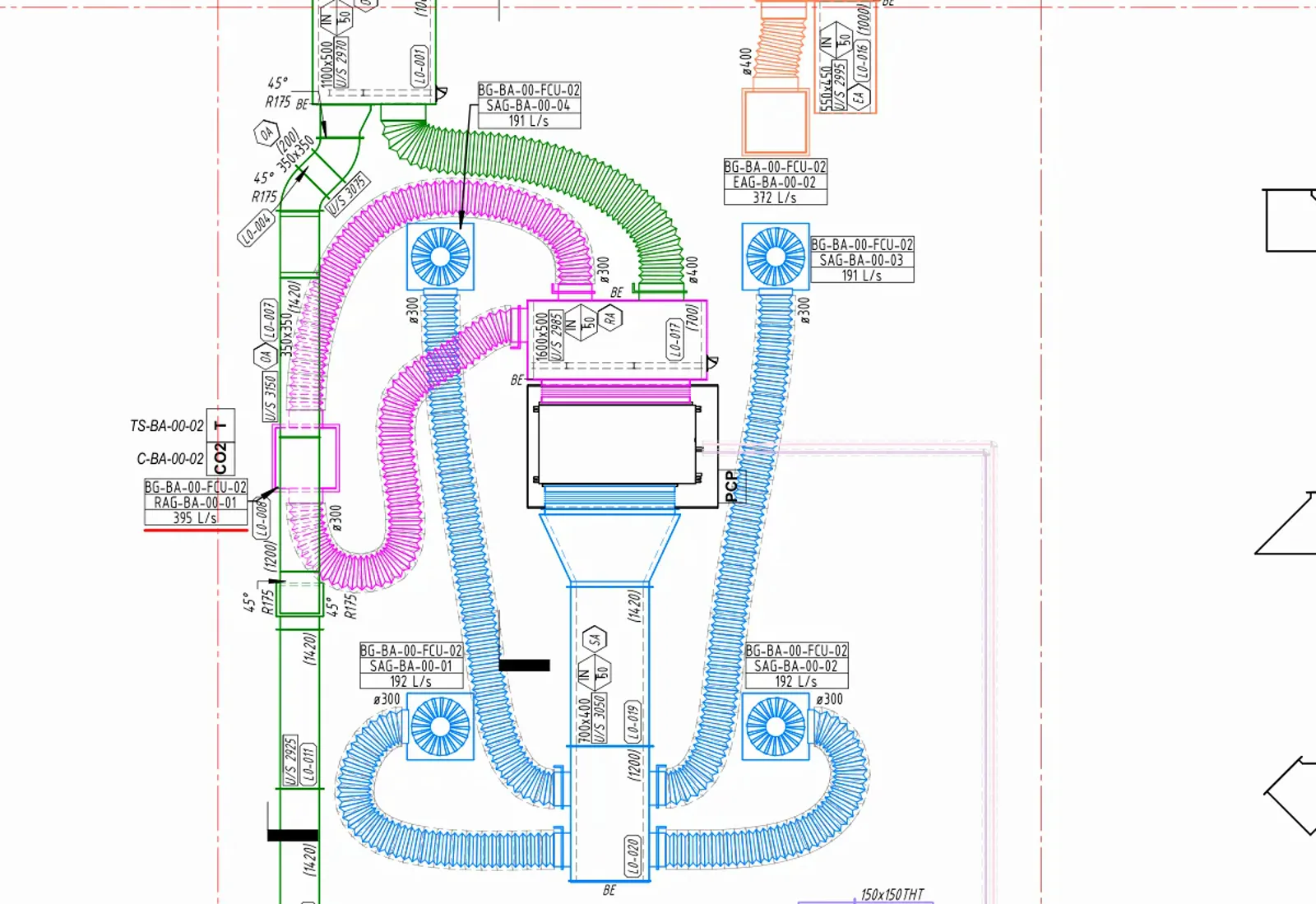
RayCAD is a Revit plugin that tags the mechanical equipment on a view for you, with the ID and model your firm shows. It puts each tag where it identifies the unit and gets in the way of nothing else, so the reader always finds the right row in the schedule.
Equipment types
RayCAD recognises 26 kinds of mechanical equipment, so you can set a different tag family and tag position for each:
AHU, FCU, VAV, fan, RTU, pump, unit heater, chiller, boiler, cooling tower, heat exchanger, ERV, humidifier, VRF indoor unit, VRF outdoor unit, coil, heating coil, switchboard, wall penetration, tundish, roof cowl, tank, chilled beam, cassette unit, drip tray, and sensor.
Units are matched by their Revit family and type, through the element setup. Generic model families work too, and they take the same tags.
What the tag says
An equipment tag carries the unit's identifier, such as AHU-1, FD-12, or VAV-3B, and its model type. Revit's mark and type mark both read as the identifier. If your firm uses one composite equipment tag family that reads its values straight from the unit, RayCAD places that single tag on each piece of equipment. See using your own tag families.
Where the tag goes
RayCAD tries the inside of the unit first, when the unit is big enough to hold a tag. If not, it tries the four sides in turn, above, right, left, and below, and then the corners. By default, equipment tags stay horizontal, so they read the same way on every unit, whatever its rotation.
Two kinds of element are different. A tundish and a wall penetration never take an inside tag. Their tags always sit outside the element. A wall penetration is tagged on the faces of the opening, and RayCAD fills the two faces the duct or pipe runs through first, so the tag sits next to the run.
Congested plant rooms
Plant rooms stack equipment, pipework, and ductwork in a small area. RayCAD checks every candidate position against what is already on the view. A tag that cannot be placed cleanly is joined to its unit with a leader, and anything RayCAD still cannot place goes to the review panel with the reason. See intelligent placement.
Floor plans and section views
Equipment is tagged in floor plans and in section views.
Setting it up
Pick the tag family and type for each equipment type, choose which contents to tag, and save the setup in a preset. Choose whether equipment tags read horizontally everywhere, prefer horizontal, or follow each unit. See firm standards.
To tag equipment by hand in Revit, see how to tag mechanical equipment.
Try RayCAD. Equipment sits in the same run as ducts, fittings, and terminals. See the whole list on the HVAC tagging page.
Frequently asked questions
How does RayCAD tag equipment in Revit?
Select the equipment in a floor plan or section view and run RayCAD's Auto-Tag. It tags each unit with the tag family you configured for its type, and places the tag clear of the unit and its neighbors.
Which equipment types does RayCAD recognise?
AHU, FCU, VAV, fan, RTU, pump, unit heater, chiller, boiler, cooling tower, heat exchanger, ERV, humidifier, VRF indoor and outdoor units, coil, heating coil, switchboard, tank, chilled beam, cassette unit, drip tray, roof cowl, tundish, sensor, and wall penetration.
What goes on a mechanical equipment tag?
The unit's identifier, such as AHU-1 or VAV-3B, and its model type. Your tag family decides what Revit shows.
Can RayCAD tag generic model families?
Yes. Generic model families get the same identifier and model type tags, and wall penetrations modelled as generic models are tagged outside the element.