
Reduce drawing-related RFIs and client markups with RayCAD
Reduce avoidable MEPF drawing RFIs, markup requests, and rework caused by missing, incorrect, or unclear Revit tags, with RayCAD's automated tagging and review panel.



On this page
A missing tag can take a few seconds to fix in Revit. If it is found after the drawing has been shared, the same issue can lead to questions, markups, revised drawings, and delays for several teams.
RayCAD automates MEPF tagging and annotation inside Revit. It reduces avoidable drawing-related RFIs and client markup requests. It places tags according to your firm's configuration, keeps them clear and consistent, and identifies the elements that still need attention.
A small tagging mistake can become a much bigger problem
The later an issue is found, the more people have to get involved.
1. Inside the drafting team
On a large project, several engineers and drafters work on the same model and drawing set. One person models the systems, another prepares the sheets, and someone else reviews them.
When tags are missing, unclear, or inconsistent, the team has to ask which areas are finished, which need checking, and who will fix them. That creates repeated internal handoffs before the drawing even reaches the client.
2. During client or contractor review
A preliminary shop drawing goes out for review. The contractor spots a missing pipe elevation, an unclear duct size tag, or a label that seems to point to the wrong element.
They send back a markup or ask for clarification. Depending on the project's process, this can become a formal Request for Information (RFI). The drafting team investigates, corrects the drawing, and submits it again.
The change may be small, but the review cycle takes time.
3. During fabrication
Sometimes a missing annotation is not noticed in drawing review. If a fabrication team relies on that drawing and cannot find a required size, elevation, or component reference, work may pause while the team asks for clarification.
Now the question involves more than the original drafter. It can pass between the fabricator, subcontractor, contractor, and coordination team before someone confirms the information.
4. During site installation
An incorrect tag can be more serious than a missing one because it looks complete. If incorrect information is accepted and used to manufacture or install a component, the mistake may only show up on site.
Depending on the project and its checks, that can mean investigating the discrepancy, revising drawings, modifying or remaking parts, and coordinating a new installation plan.
A missing tag often creates a question. An incorrect tag that goes unnoticed can contribute to costly rework.
What kinds of tagging problems lead to questions?
| Drawing issue | Question it can create |
|---|---|
| Missing duct size tag | "What size is this duct?" |
| Missing pipe elevation tag | "At what elevation should this pipe run?" |
| Tag placed ambiguously between elements | "Which element does this label refer to?" |
| Incorrect or conflicting tag value | "Which size or elevation is correct?" |
| Missing equipment identification | "Which equipment item is this?" |
Not every drawing comment is an RFI. Many are resolved as internal review notes or client markups. Each one still uses time the team could spend on modeling, coordination, or preparing the next issue.
How RayCAD helps reduce tagging-related RFIs
Place the tags your drawing requires
Tagging a large set of MEPF drawings by hand is repetitive. It is easy to overlook a fitting, an elevation, or a corner of a crowded view.
RayCAD places tags using your firm's configured rules, Revit tag families, and tag types. That cuts the manual placement and makes annotation more consistent across views and team members.
See how firm-specific tagging standards work.
Make tags easier to read and understand
A tag is no use if the reader cannot tell which element it describes.
RayCAD places tags clearly, avoids overlaps and ambiguous associations, and puts information where it is needed. Reviewers, fabricators, and site teams can then read the drawing without asking for clarification.
Explore intelligent tag placement.
Show what still needs review
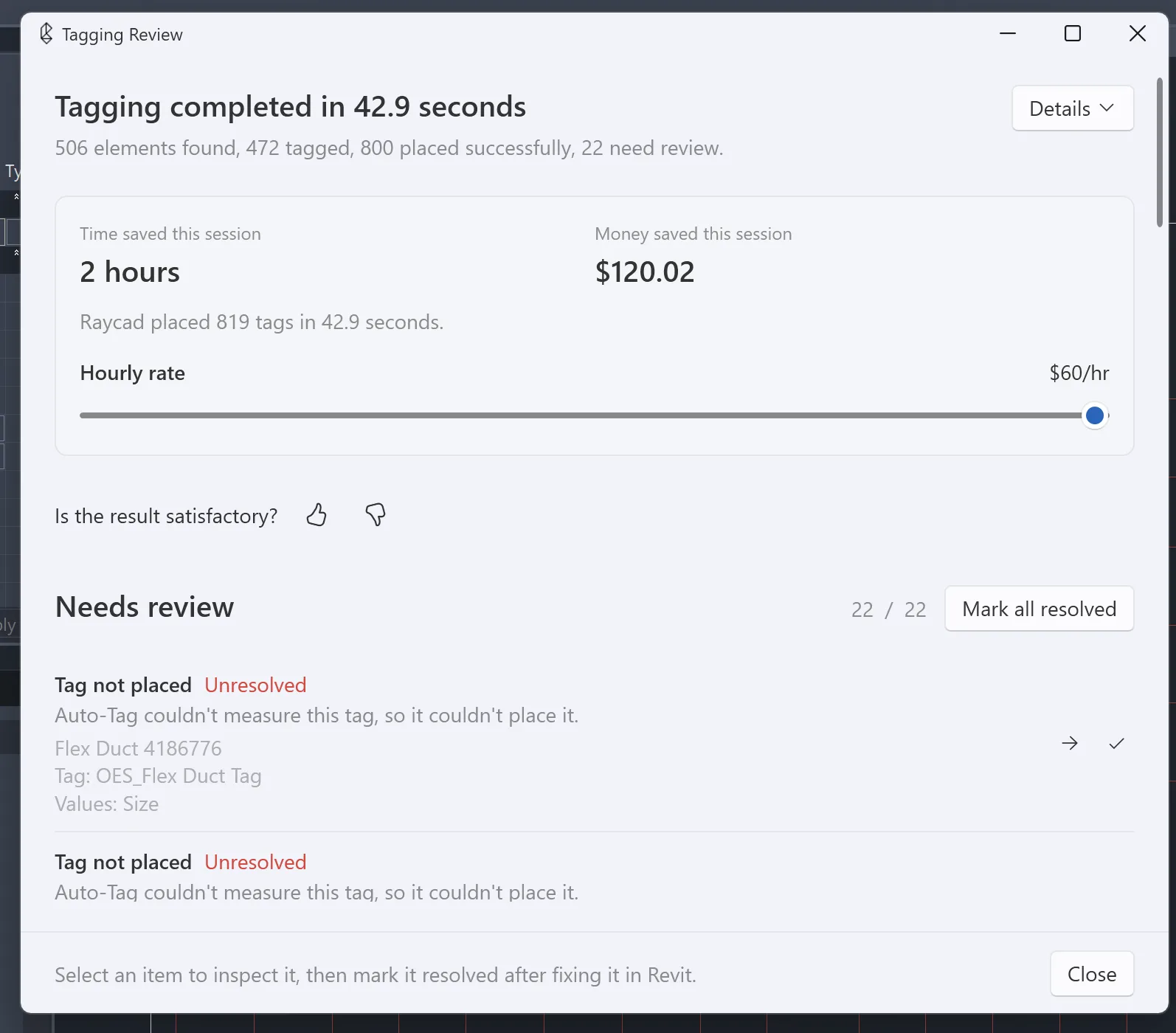
Automation should not hide its exceptions. If RayCAD cannot place a required tag correctly, the affected element appears in its review panel.
The drafter uses the panel to go straight to that element in Revit, look into the issue, and resolve it before the drawing is issued.
The team gets a focused list of known tagging exceptions. Nobody has to rely only on a visual search through every sheet.
Update affected tags after coordination changes
Shop drawings change as coordination progresses. A duct route moves, a pipe size changes, or a fitting is replaced, and the related tags may need to change too.
With RayCAD, the drafter selects the affected elements and runs tagging again. RayCAD replaces their existing tags with tags based on the current model and the selected configuration, with no full manual re-tag of the drawing.
That makes it easier to respond to review comments and prepare the next drawing revision.
Learn how RayCAD helps shorten shop drawing turnaround.
Use the right tagging setup for each drawing stage
A preliminary coordination drawing and a detailed shop drawing can need different annotations.
RayCAD lets the team configure what to tag, which tag families and types to use, and how tags are placed. Teams can use configurations suited to each drawing requirement, and each drafter does not have to remember every rule.
What changes for the project team?
| Without a consistent tagging workflow | With RayCAD |
|---|---|
| Drafters manually place and check tags across many views | Tagging follows the firm's configured rules |
| Reviewers have to search for missed or unclear tags | Known placement exceptions are listed in the review panel |
| Coordination changes create repeated manual tagging work | Affected elements can be selected and re-tagged |
| Small annotation issues can lead to more questions and reissues | Teams have more chances to find and correct tagging issues before issue |
The benefit goes beyond saving drafting time. Clearer drawings reduce avoidable back-and-forth between the drafting team, contractor, fabricator, and site team. Catching an issue before the drawing leaves the office is generally easier than resolving it after other teams have acted on it.
What RayCAD does not replace
RayCAD helps with tagging and annotation errors. It cannot eliminate all RFIs.
RFIs also come from design conflicts, missing specifications, coordination problems, site conditions, and decisions that need engineering clarification. RayCAD does not correct incorrect values already in the Revit model, and it does not guarantee that every issued drawing is error-free. The information on a tag comes from your model. See where the data on a tag comes from.
The engineer still checks the model, the configured tagging requirements, and the final drawing before issue.
Catch tagging issues before they become someone else's question
Use RayCAD to automate repetitive MEPF tagging, review exceptions, and prepare clearer Revit shop drawings for issue.
Frequently asked questions
Can missing or unclear Revit tags cause RFIs?
Yes. When a drawing does not clearly show sizes, elevations, equipment IDs, or which element a label refers to, another project team may ask for clarification. That can be an internal question, a client markup, or a formal RFI.
Does RayCAD prevent all RFIs?
No. RayCAD reduces avoidable questions caused by tagging and annotation issues. It does not resolve unrelated design, coordination, or site problems.
How do I find tags RayCAD could not place?
RayCAD lists elements with unresolved tag-placement issues in its review panel. You go from the panel straight to the element in Revit and review the issue there.
Can RayCAD help after a client sends drawing markups?
Yes, for tagging-related changes. Update the configuration, select the affected elements, and re-tag them instead of rebuilding all their annotations by hand.
Does RayCAD verify that the model information is correct?
No. RayCAD takes its information from your Revit model and uses your configured tag families and rules. Engineering checks of the underlying model data remain part of your drawing QA.