
Intelligent tagging in Revit: how RayCAD places tags
RayCAD is smart tagging for Revit. It reads precise geometry through the Revit API, then places non-overlapping MEPF tags in a neat, consistent, human-like layout.



On this page
- What RayCAD measures before it places a tag
- Non-overlapping tags on the printed sheet
- Neat, consistent, human-like tag layout
- Placed the way the industry does it
- Review what RayCAD flags, not every tag
- Placement standards that match your firm
- Tags only where they carry information
- It works on congested drawings
- Improving every week
- Questions
Intelligent tagging in Revit means the software knows what is on the sheet before it places a tag. RayCAD is highly sophisticated software that takes complete advantage of the entire Revit API to collect precise data about each element: its geometry, its tag box, and its exact dimensions. It works out which parts of the 3D elements are visible in the 2D floor plan and section views. From that it builds an internal model of what sits where and how much space it takes, down to the precision Revit allows.
Other similar tools and Revit's own tagging tools, including Tag All, put a tag at a default position on each element without checking what else is nearby, so tags often land on ducts, fittings, and other tags. RayCAD does not naively stamp tags onto ducts and other elements this way. It reads the geometry first, then places each tag where it avoids overlaps and clashes with other elements.
What RayCAD measures before it places a tag
The internal model covers more than the elements themselves.
- The real size of each tag. RayCAD measures the text extent of the tag as drawn. Revit's own bounding box carries extra padding, so RayCAD does not use it.
- The view crop. Every tag stays fully inside the crop of the view, including crops that are not rectangles.
- Tags and leaders already in the view. RayCAD treats them as obstacles, so new tags go around what you or an earlier run already placed.
- Spacing in paper units. RayCAD sets the gap between tags on paper and converts it to the view scale. The gaps look the same at 1:50 and at 1:100.
Non-overlapping tags on the printed sheet
With that model of the view, RayCAD places tags so that none of them overlap element geometry or each other. Tags on the same element sit closer together than tags on different elements. When the sheet is printed, every tag is readable.
Neat, consistent, human-like tag layout
Once the space is mapped, RayCAD runs state-of-the-art machine learning algorithms trained on a large number of perfectly tagged sheets produced by humans. The output is human-like placement that is neat, consistent, and non-overlapping.
Consistency also holds across repeated elements. When air terminals sit in a regular ceiling grid, RayCAD gives the whole grid the same tag direction and orientation, so the sheet reads as one pattern.
Placed the way the industry does it
RayCAD does not drop tags at random positions. It follows the conventions drafters already use on production MEPF sheets, and it builds those conventions into the placement as rules. Leaders show this most clearly:
-
A leader is either one straight line or a single elbow. It never zigzags.
-
Leaders do not create concave angles.
-
The second segment of an elbowed leader turns at most 90 degrees.
-
A leader joins the side of the tag square-on.
-
A group of stacked tags carries one leader, on the tag nearest the element.
-
Leader routes avoid other tags and other leaders.
Each leader is a native Revit leader, so you can select and edit it like any leader you drew yourself.
Review what RayCAD flags, not every tag
RayCAD is engineered so you do not have to check every tag. It places a tag only when it is confident the placement is good. Anything it is not sure about, such as a tag with no clear position or a leader that cannot avoid another tag, goes to the review panel. Each flagged tag also gets a red line under it in the view, and "Go to element" takes you straight to it.
Your work changes from tagging to reviewing, and you review only the flagged tags. Checking every tag on the sheet would put you back where you started.
Placement standards that match your firm
Learning from examples does not tie RayCAD to one placement standard. Each firm can configure its own relative arrangement of tags, and RayCAD uses your own tag families. See firm-specific placement standards and using your own tag families.
Tags only where they carry information
RayCAD does not put a tag on every element. It decides where a tag is worth placing, based on where the information changes and where readability needs one. See information-based tagging for how this differs from Tag All.
It works on congested drawings
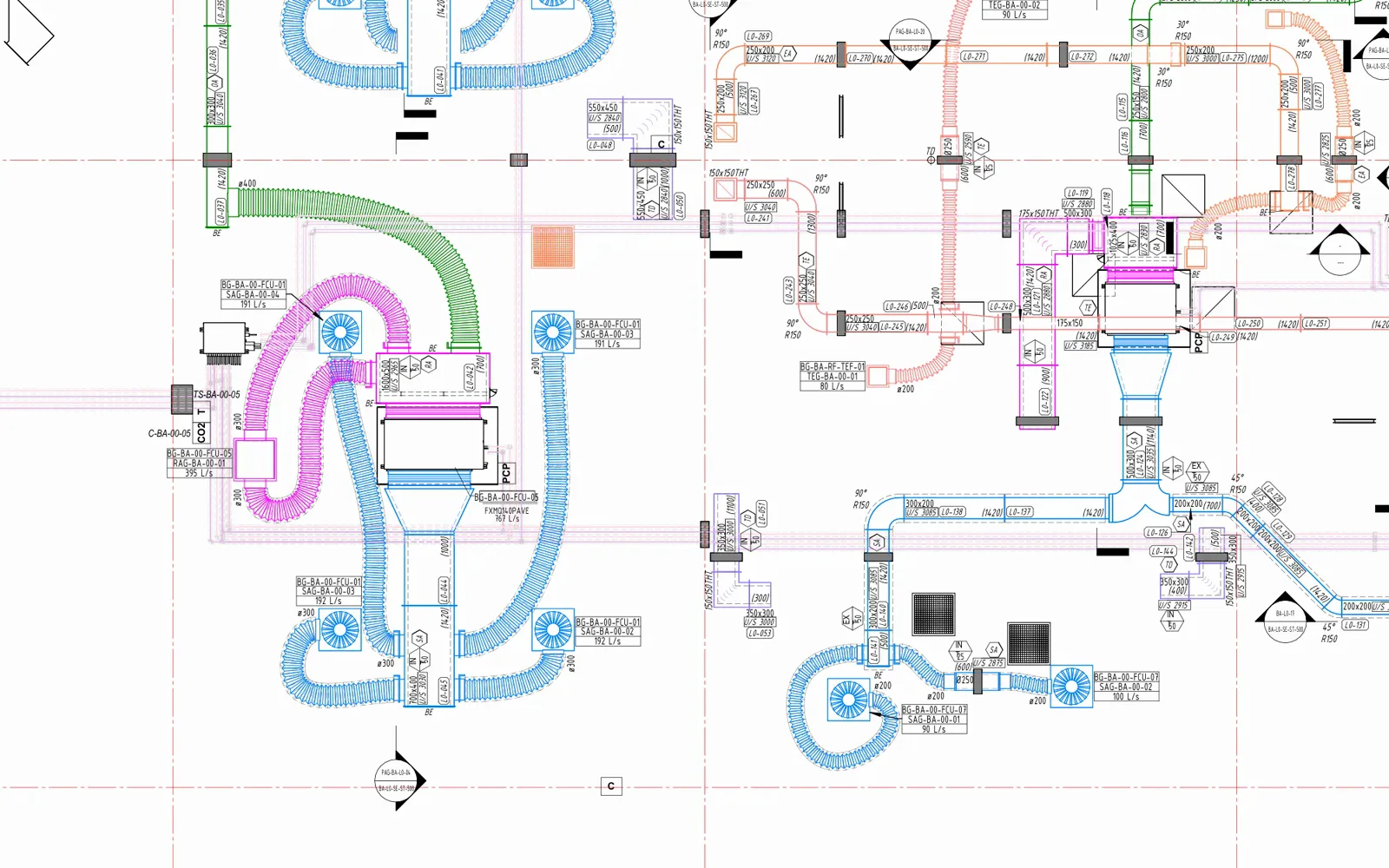
Many demos show a few tags on an empty drawing. RayCAD works on heavily congested drawings, which is where tagging by hand takes the longest. See the tagged sample sheets for full output.
Improving every week
Every week we release improvements that handle more cases, including more congested drawings, and make runs faster. RayCAD is AI-enabled. It uses state-of-the-art technology from computer science and machine learning to produce an indistinguishable human-like layout.
Frequently asked questions
What is intelligent tagging in Revit?
Intelligent tagging means the software measures what is on the view before it places a tag, so tags land in clear space instead of on top of the model. RayCAD does this for HVAC and piping in floor plans and section views.
How does RayCAD keep tags from overlapping?
RayCAD builds a model of each view from Revit API geometry, including the real size of every tag. It places each tag only where it clears element geometry, other tags, and leaders, and it keeps tags inside the view crop.
Does RayCAD make smart annotations in Revit that match my firm's standard?
Yes. Each firm can configure its own relative arrangement of tags, and RayCAD uses your own tag families.
Does RayCAD place tags at random positions?
No. RayCAD places tags the way drafters do on production sheets. Leaders, for example, are a straight line or a single elbow, turn at most 90 degrees, join the side of the tag square-on, and avoid other tags and leaders.
Do I have to check every tag RayCAD places?
No. RayCAD places a tag only when it is confident in the placement, and it sends anything uncertain to a review panel. You review the flagged tags instead of checking the whole sheet.
Does RayCAD tag every element?
No. RayCAD tags where the information changes, such as size, elevation, or direction, and where readability needs a tag.
Does it work on congested drawings?
Yes. RayCAD is built for heavily congested MEPF drawings. The tagged sample sheets show full output.